
Guide 1 of 7
Medistill works as a connector inside Claude. Once connected, Claude can query 2,000+ healthcare datasets on your behalf. Setup takes under three minutes.
Click the button below. Claude opens with the connector dialog already filled in, review the values and click Add.
Add Medistill to ClaudeClaude shows a notice that the values came from an external link, that is expected. Confirm they read Medistill and https://mcp.medistill.ai/mcp before adding.
In Claude Desktop instead: open Settings → Connectors, click Add, choose Add custom connector, and enter:
https://mcp.medistill.ai/mcp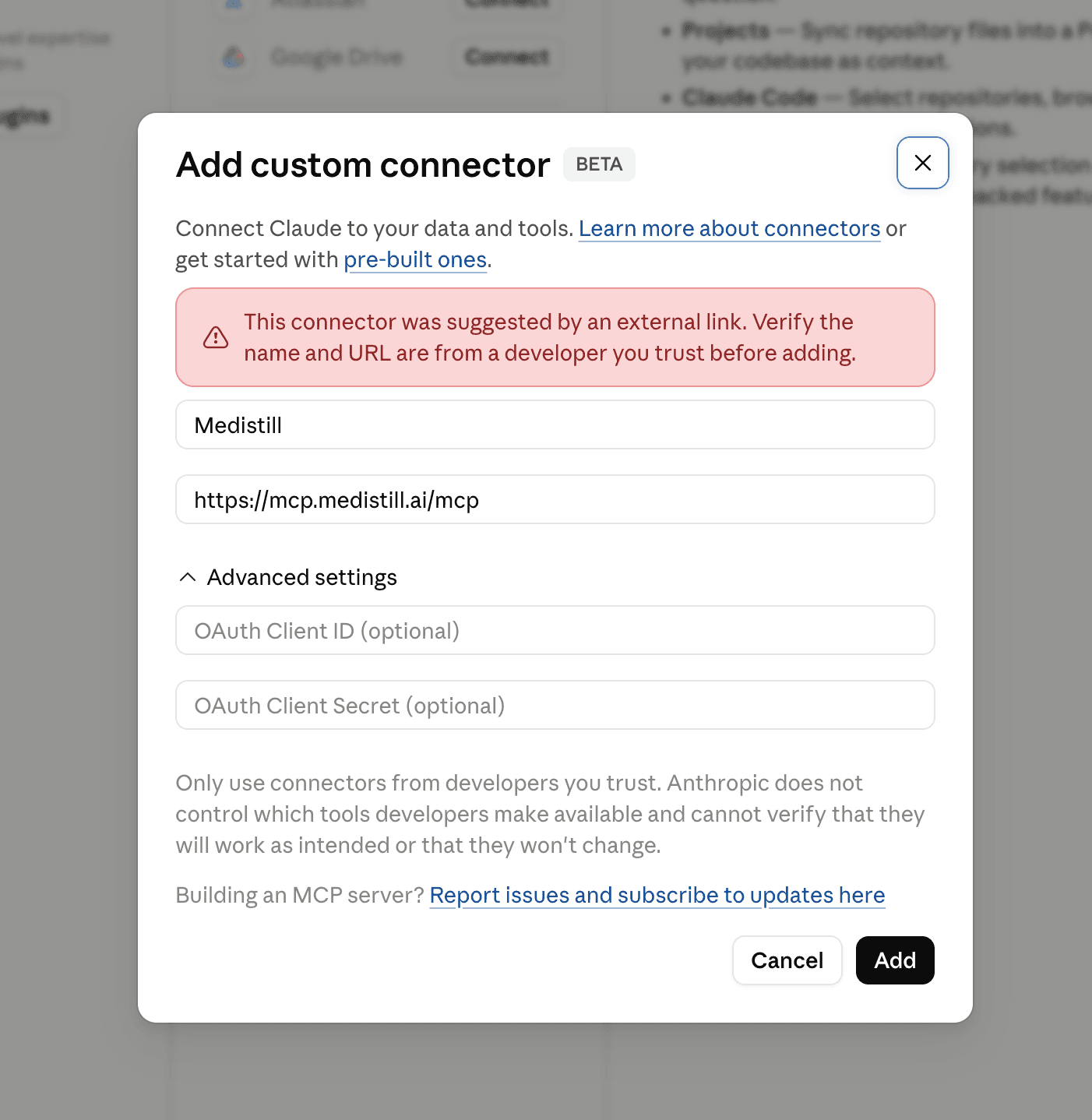
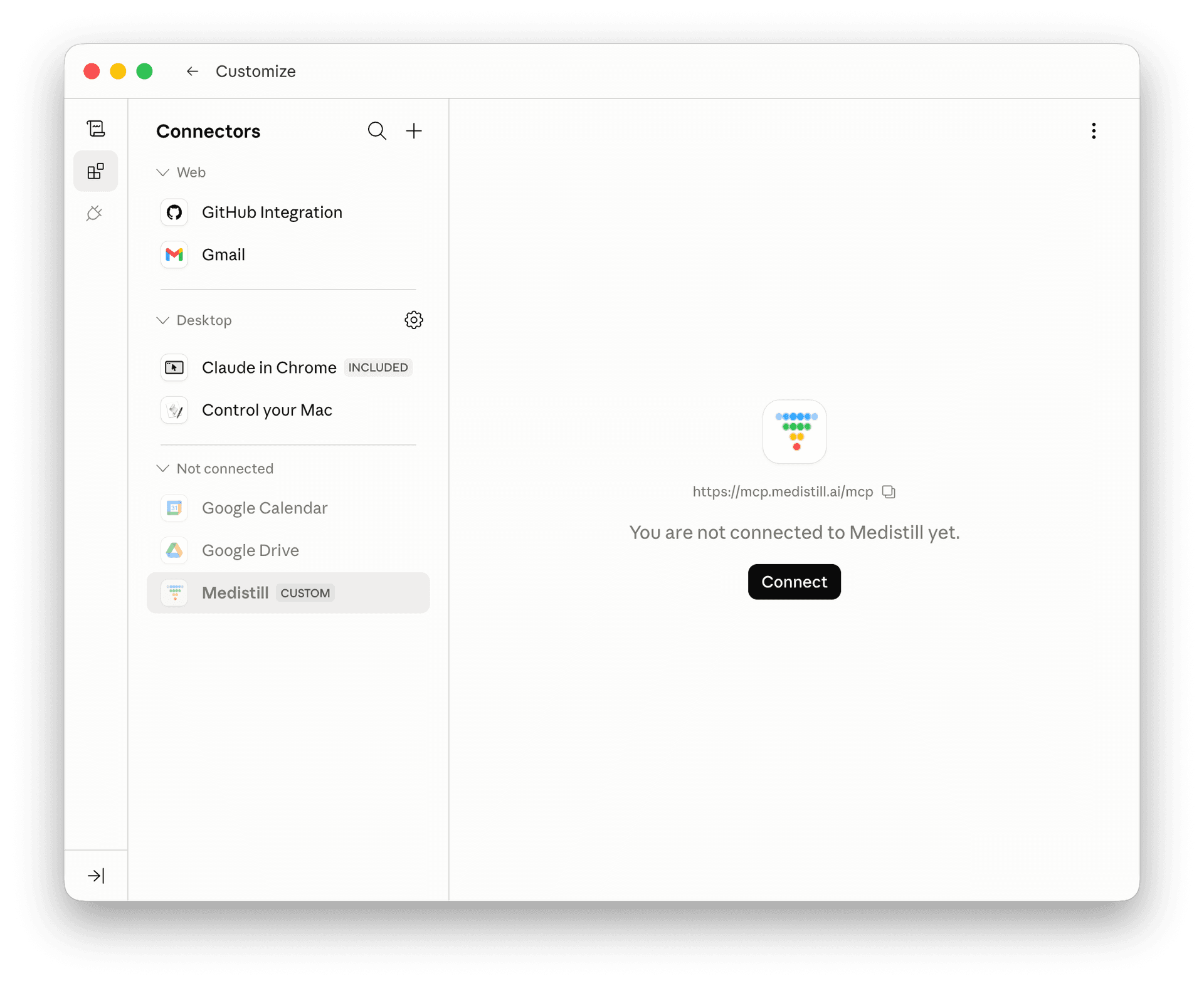
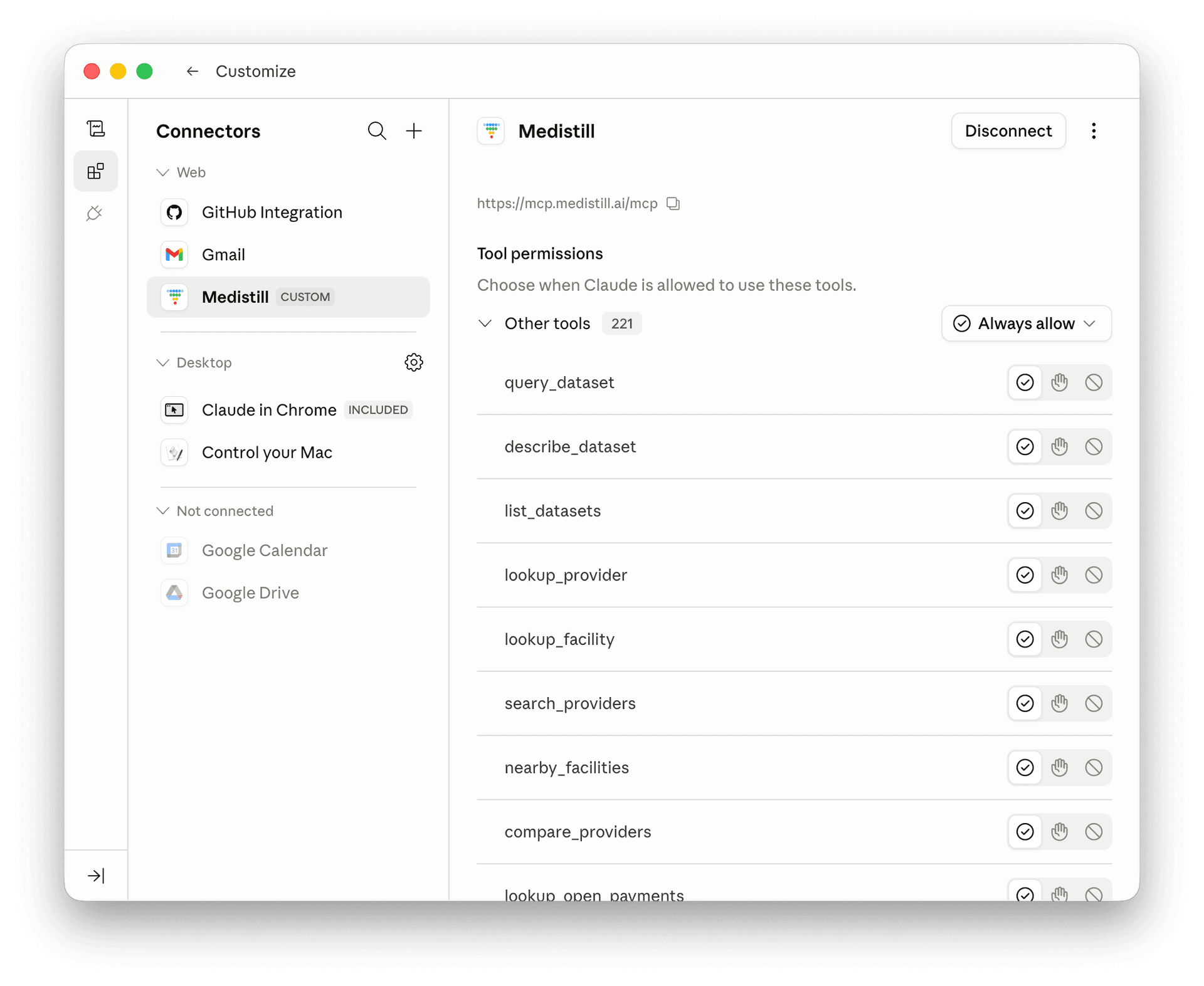
Medistill now appears in your connectors list (use the Not connected filter at the top if the list is long). Click Connect next to it to start the authentication flow.
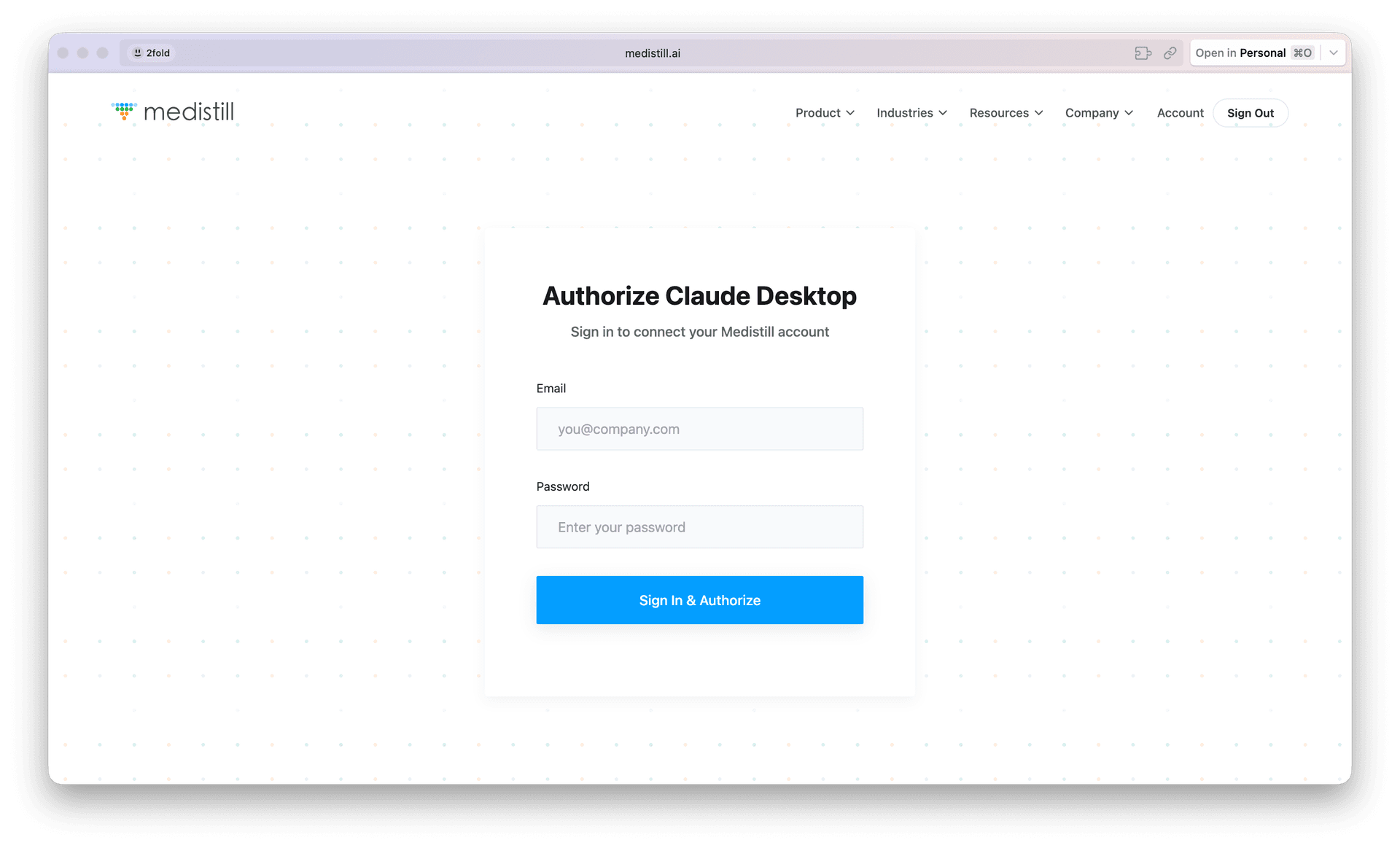
Your browser will open the Medistill authorization page. Sign in with the email and password you used when you created your Medistill account, then click Sign In & Authorize.
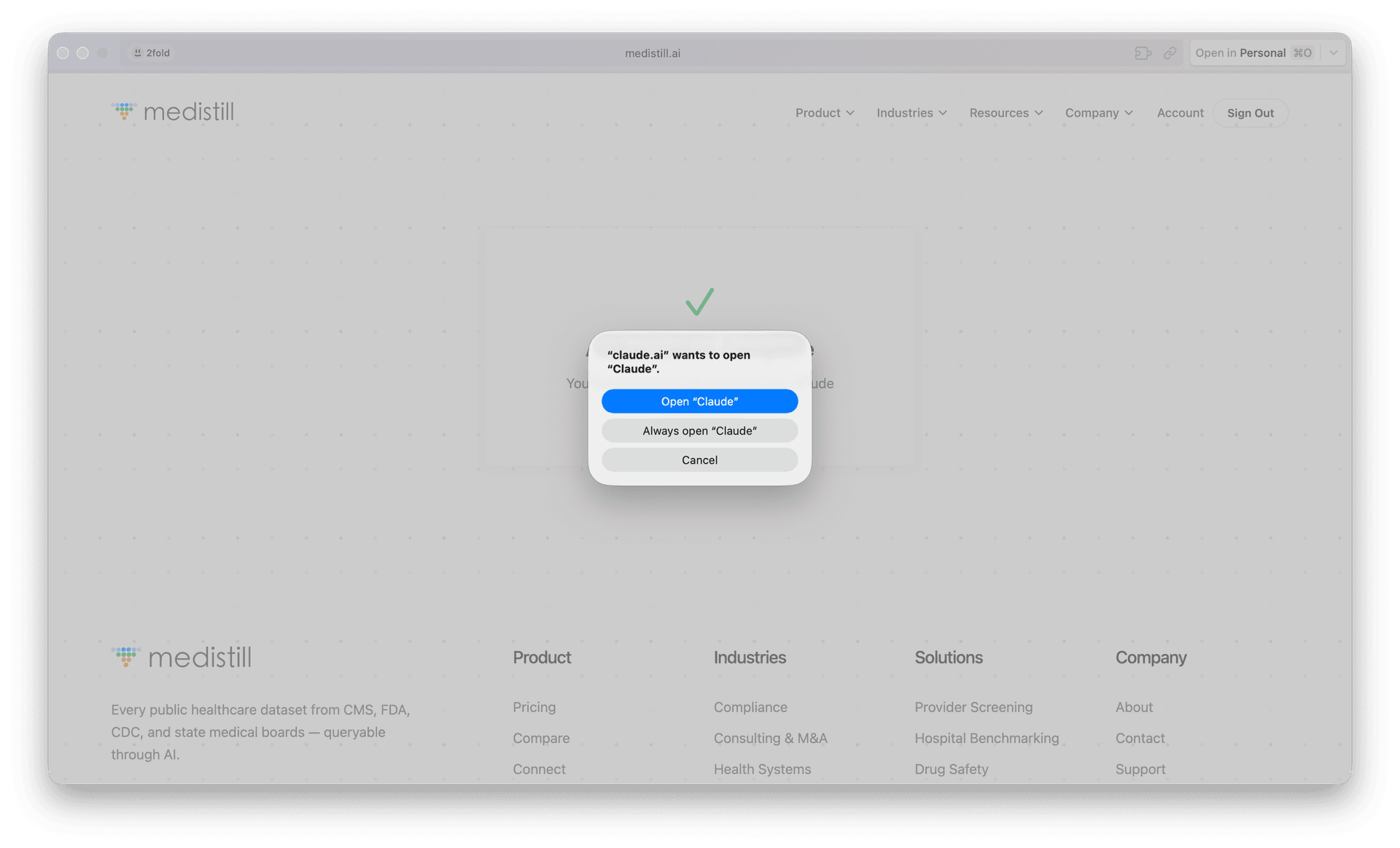
After signing in, your browser will prompt you to open Claude. Click Open “Claude” to return to the app. The Medistill connector will now show as active and you’re ready to start querying.
By default, Claude will ask for your approval each time it uses a Medistill tool. To skip the approval prompts, open Settings → Connectors → Medistill and set Read-only tools to Always allow. This lets Claude query Medistill seamlessly without interrupting your workflow.
Next guide
Your First Query