
Guide 4 of 7
Any query result can be turned into a visual dashboard or a formatted report. No separate BI tool required, just tell Claude what you want to see.
Start with a data query. For example:
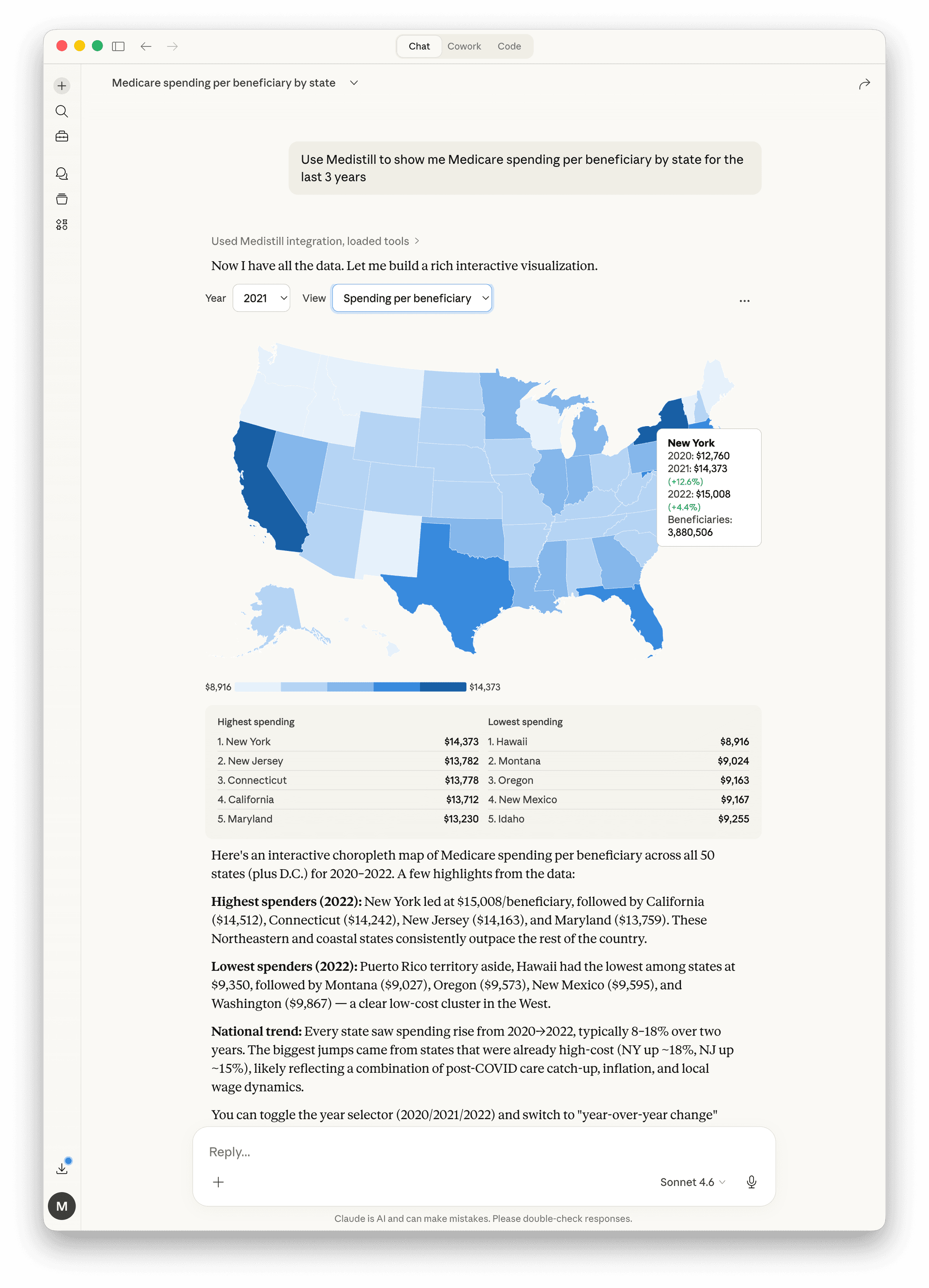
Use Medistill to show me Medicare spending per beneficiary by state for the last 3 yearsClaude automatically builds an interactive dashboard, in this case, a choropleth map of all 50 states with spending data, a high/low comparison table, and a narrative summary highlighting key trends. You can toggle between years and view types directly in the visualization.
Refine the dashboard with follow-up instructions:
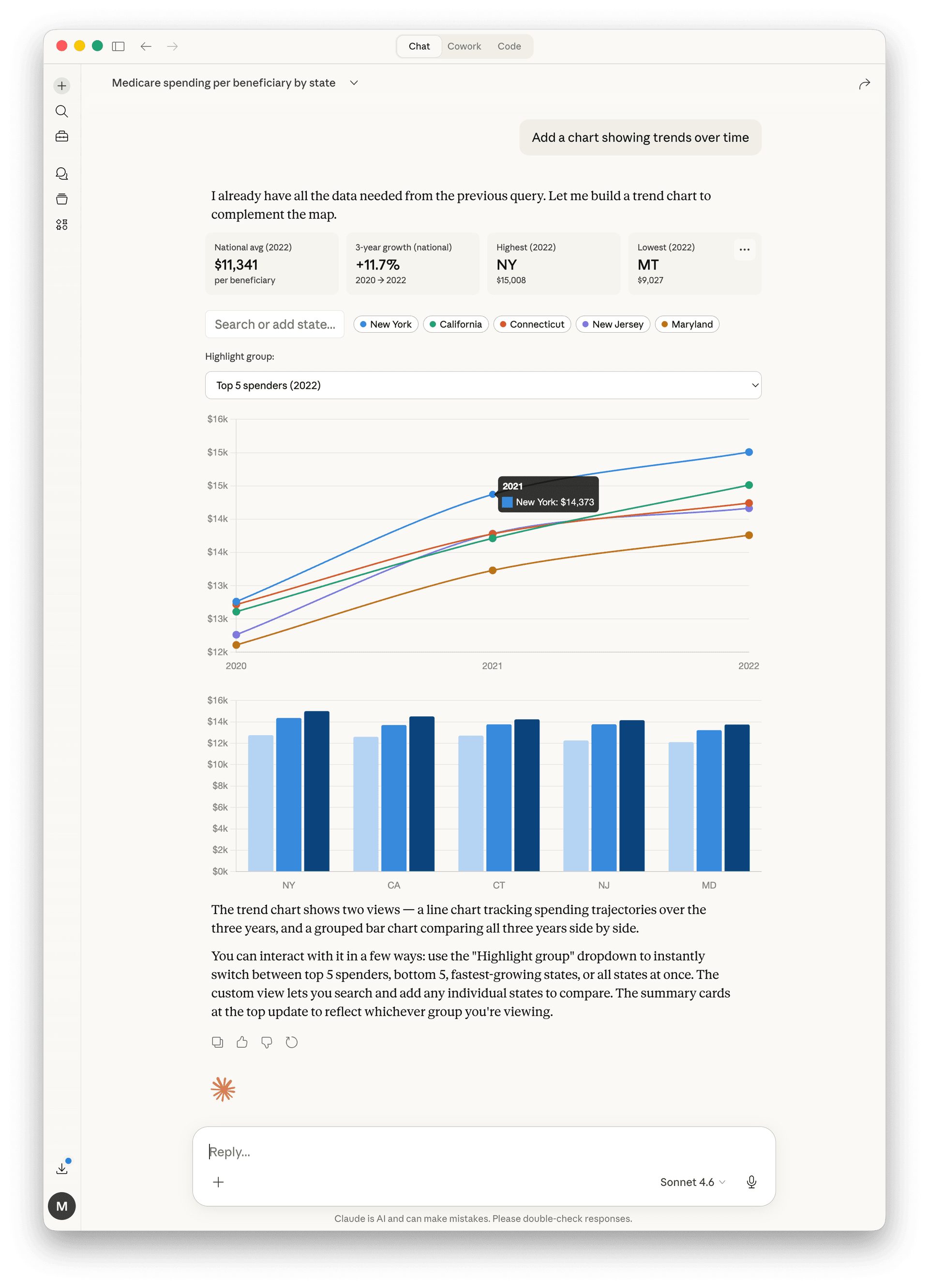
Add a chart showing trends over timeClaude adds a line chart tracking spending trajectories for the top states across all three years, plus a grouped bar chart comparing them side by side. The dashboard includes interactive summary cards, a state search, and highlight groups you can toggle between top spenders, bottom spenders, or fastest-growing states.
When you need a formatted document to share, ask Claude to generate a report:
Generate a PDF report of these findingsClaude produces a multi-page PDF with a cover page, KPI summary, national trends, state disparities, ranked tables, growth trajectories, and a complete reference section , all generated from the same conversation.
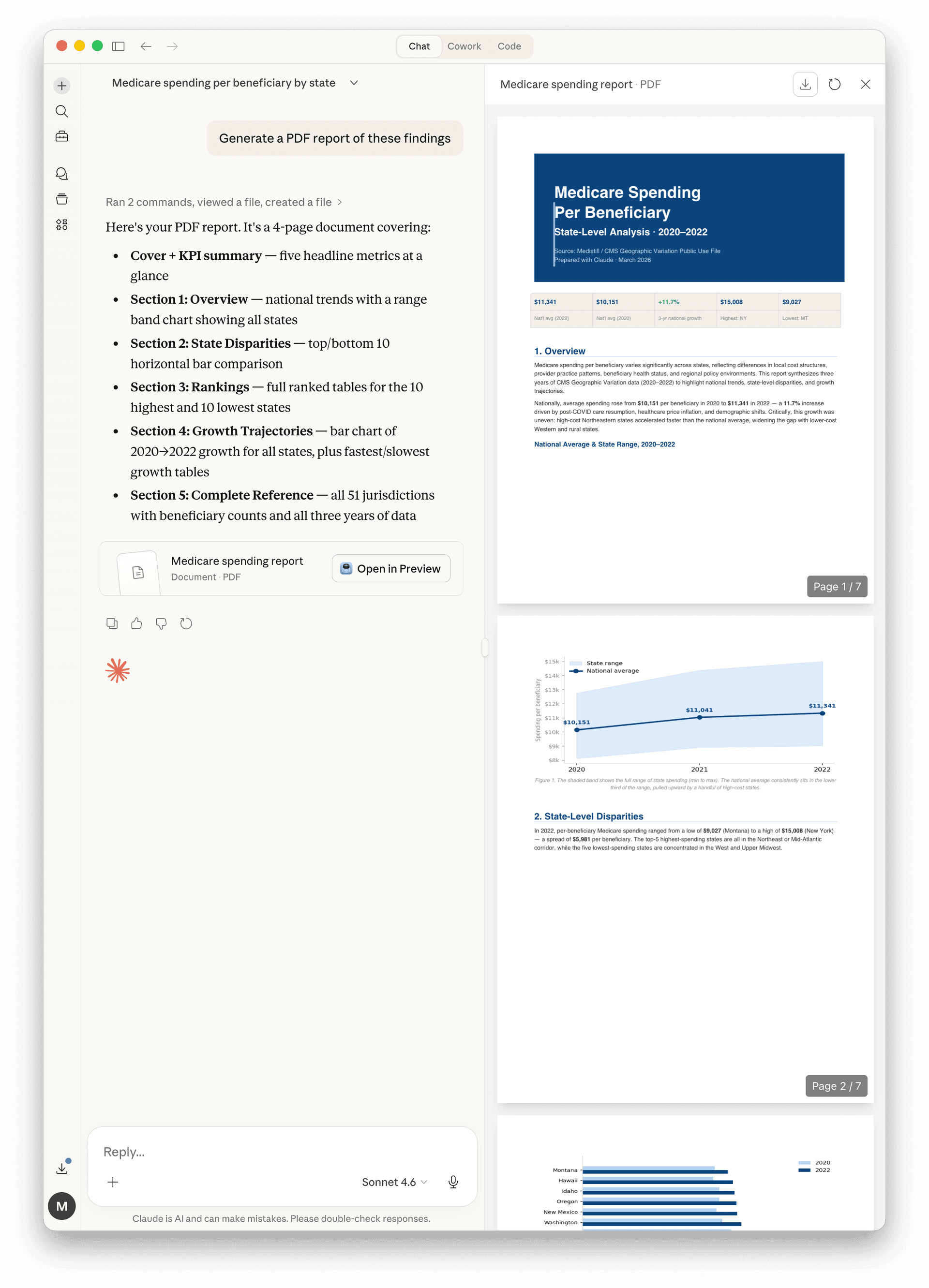
Sample report: Medicare Spending Per Beneficiary
PDF · 4 pages · Generated by Medistill
Want something more hands-on? Ask Claude to build a self-contained interactive dashboard:
Create an interactive downloadable dashboardClaude generates a single HTML file with all data baked in , KPI strip, interactive choropleth map, sortable rankings table, trend line chart, growth rate bars, distribution histogram, scatter plots, and extremes cards. Open it in any browser, share it, or host it anywhere with no dependencies.
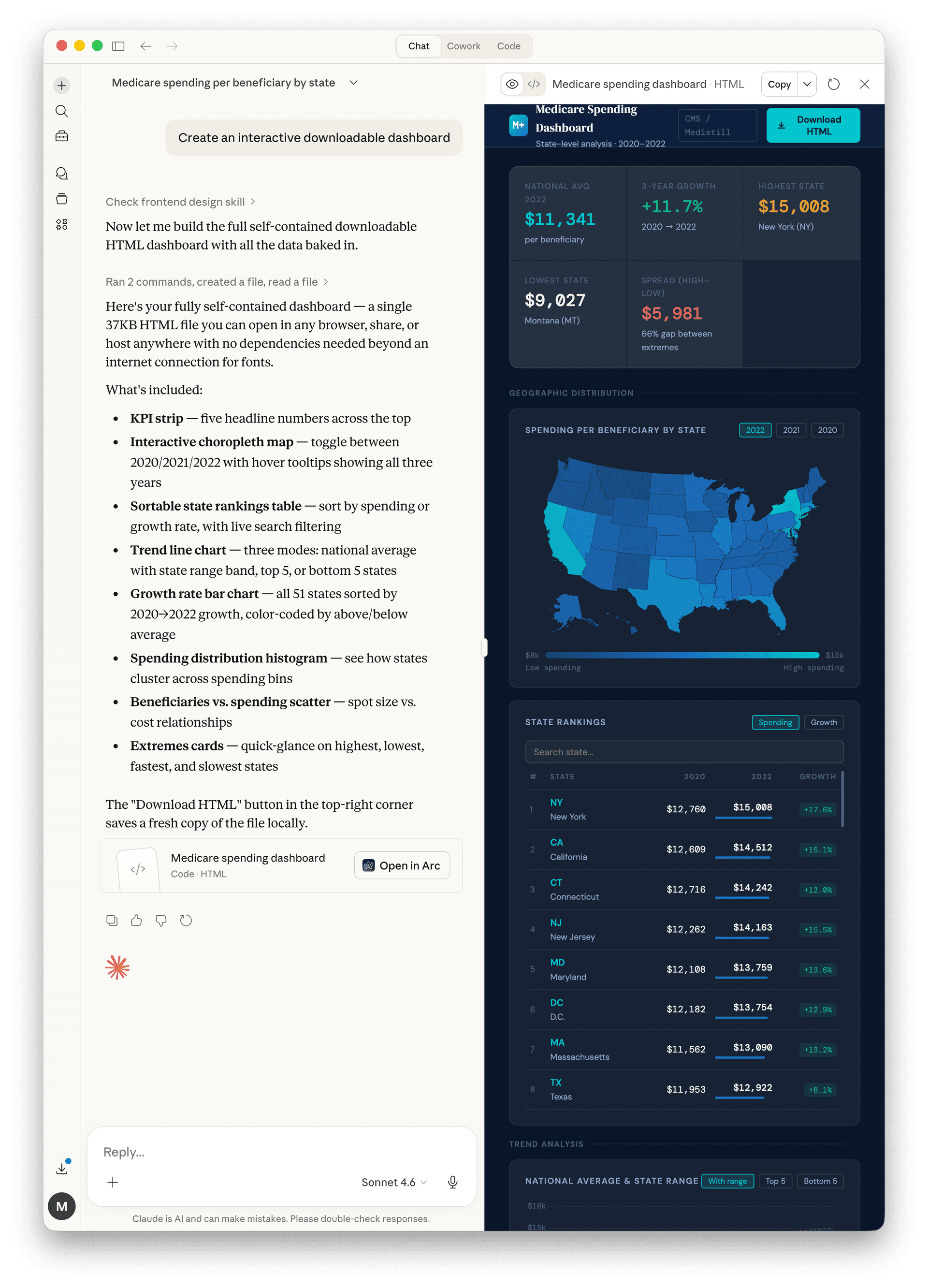
Sample dashboard: Medicare Spending Per Beneficiary
HTML · Interactive · Open in any browser
Every dashboard and report is a conversation. Keep refining with follow-up instructions:
Break this down by region instead of stateHighlight the top 10 outliersAdd a comparison to the national averageEach instruction updates the existing visualization. You can iterate until the output matches exactly what you need.
Next guide
Sharing Queries & Dashboards