
Guide 5 of 7
Every query result, dashboard, and report you create in Medistill can be shared with teammates or external stakeholders. Share a live conversation link, publish interactive dashboards, or download files directly.
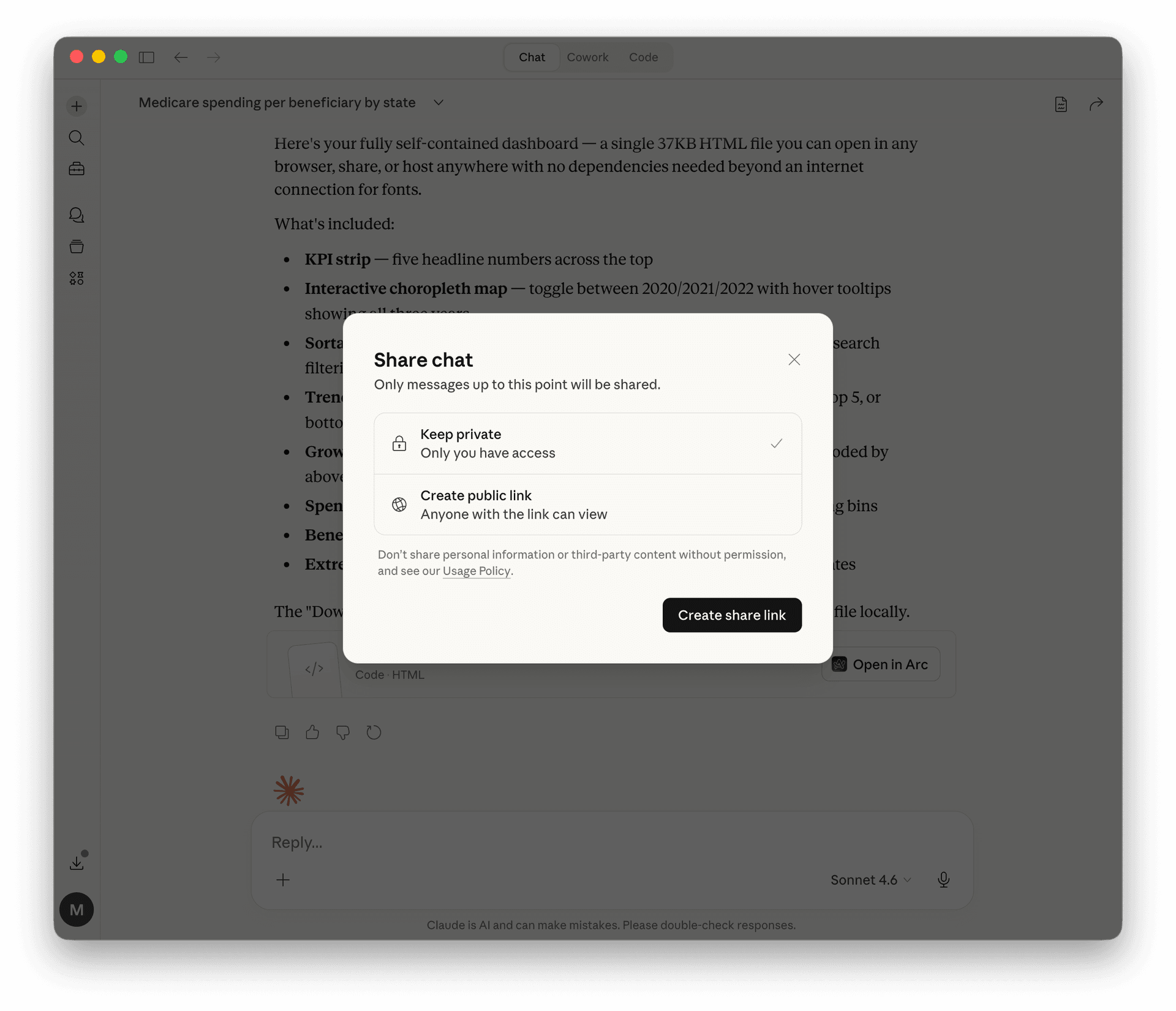
Any Claude conversation that uses Medistill can be shared. Click the share icon in the top-right corner to open the share dialog. Choose “Create public link” so anyone with the link can view the full conversation, including all query results and dashboards.
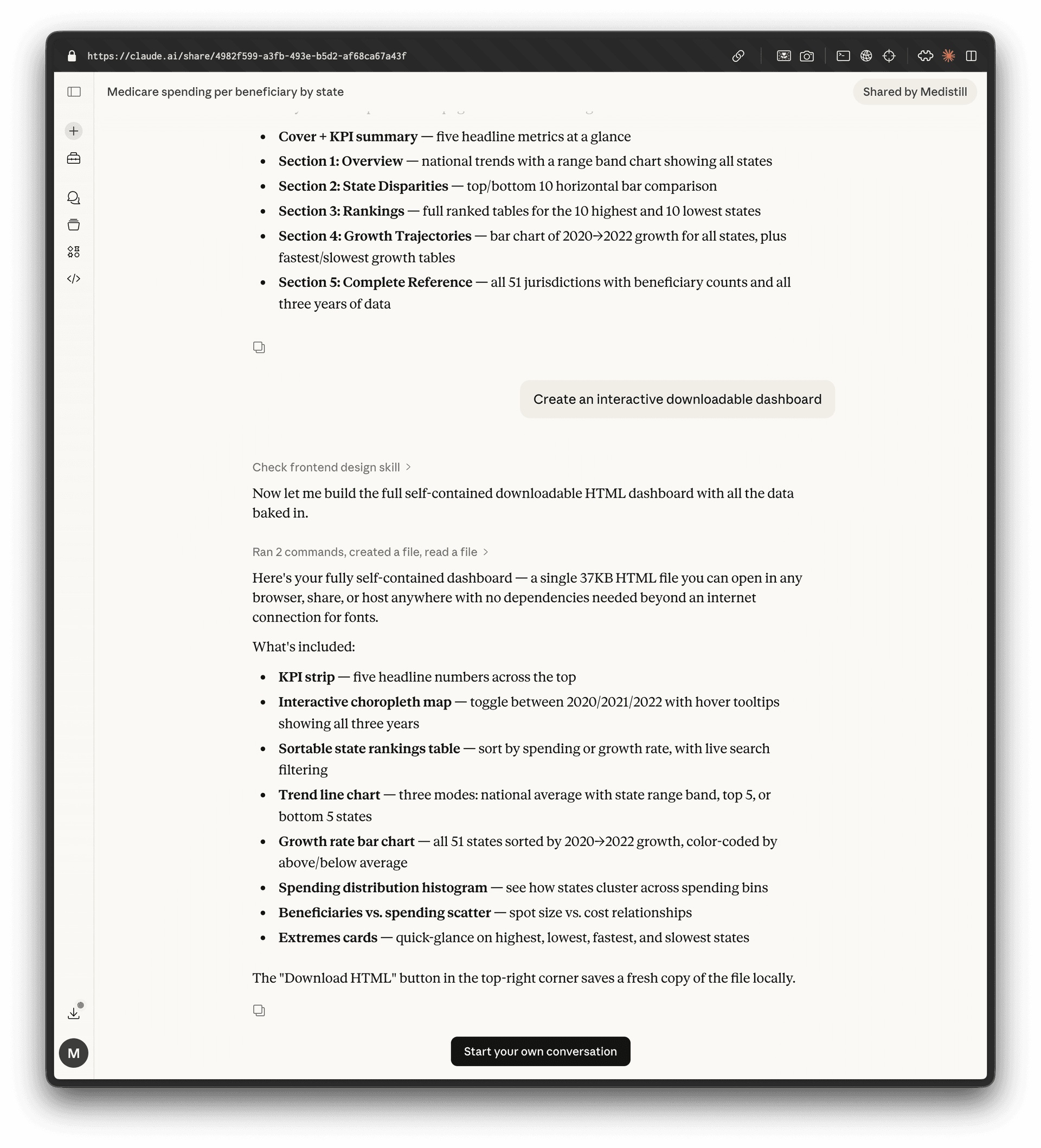
Recipients open the link and see the full conversation , every query, chart, table, and narrative summary. The shared view shows a “Shared by Medistill” badge and a “Start your own conversation” button so they can begin their own analysis.
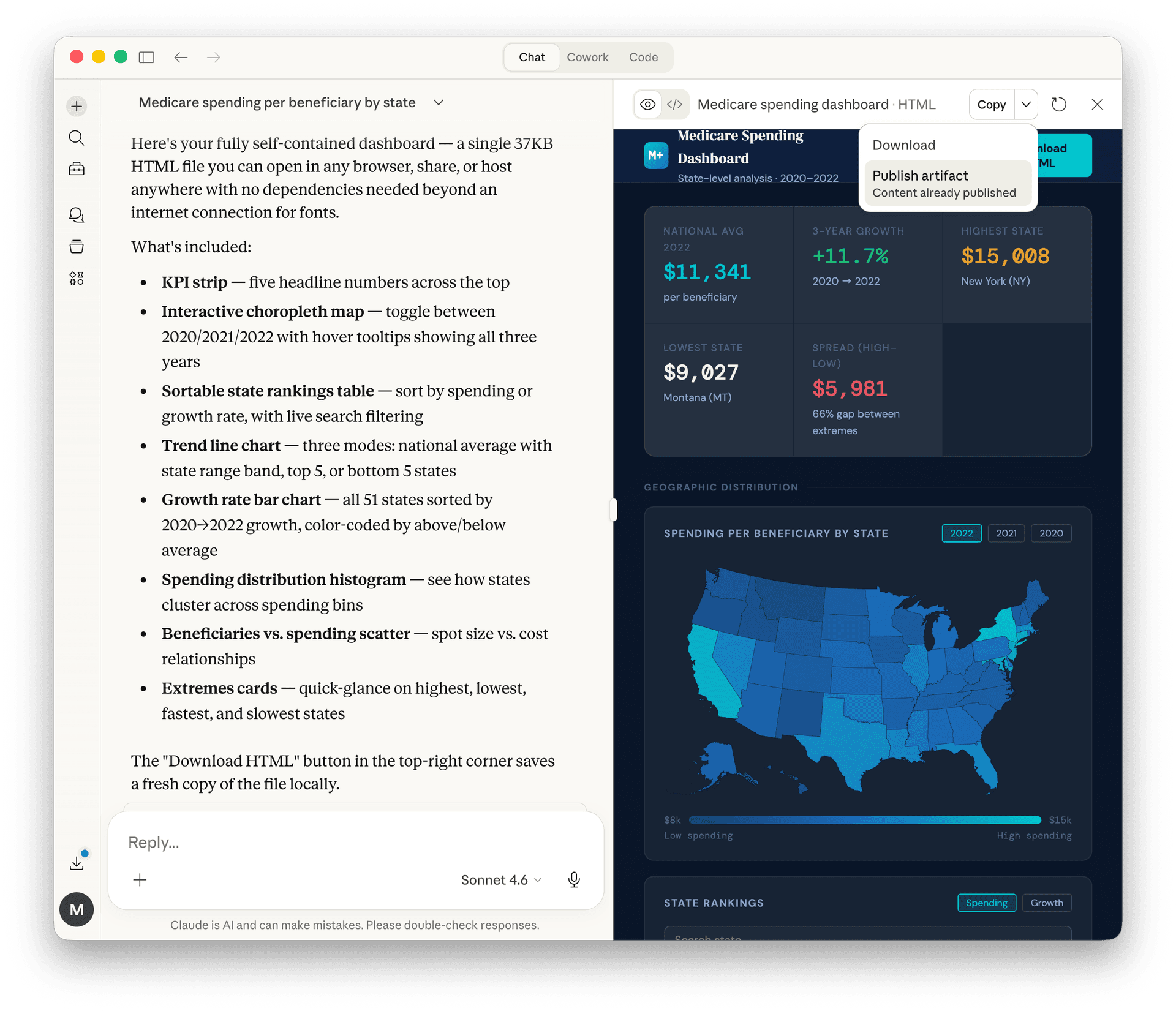
For interactive dashboards and reports, Claude generates downloadable artifacts. Click the artifact title to open the preview, then use the dropdown to download the file directly or publish it as a standalone page anyone can view.
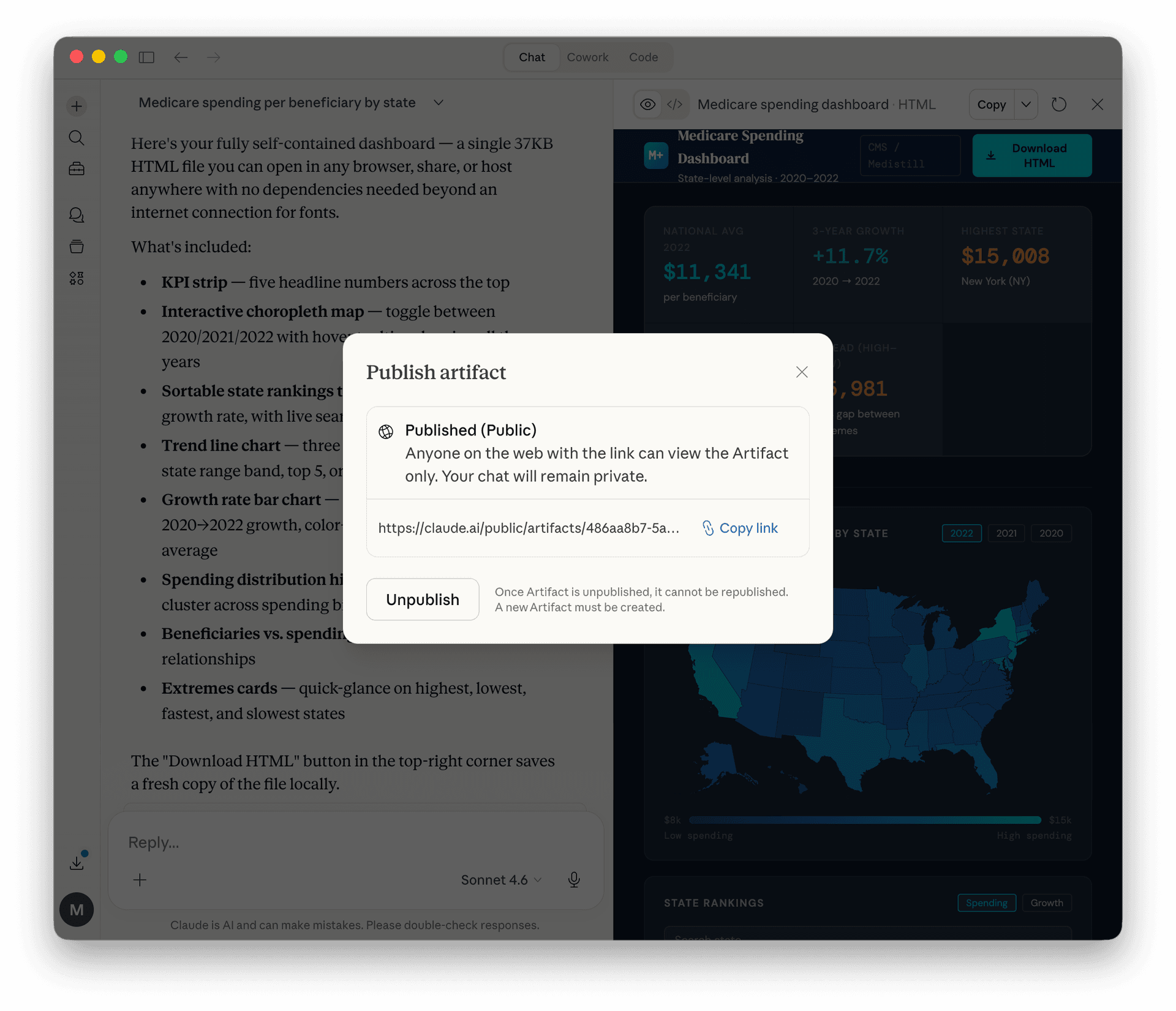
After publishing, you get a public URL you can copy and send to anyone. Recipients can view the artifact, your chat stays private. This is ideal for sharing interactive dashboards, reports, and visualizations without giving access to the full conversation.
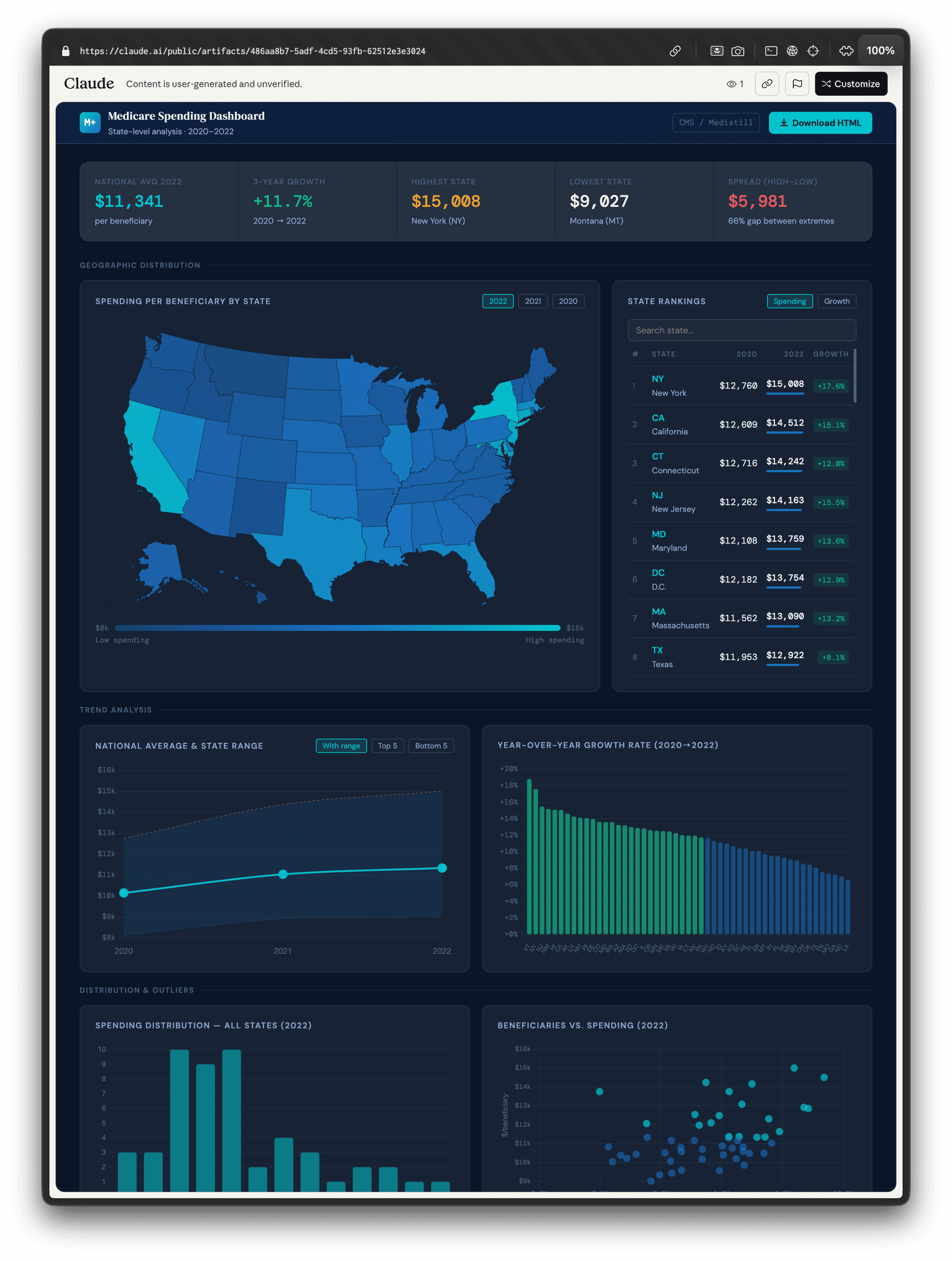
Anyone with the published link opens a fully interactive dashboard in their browser, choropleth maps, rankings tables, trend charts, and distribution plots all work without any setup. They can also download the HTML file to keep a local copy.
Tip: Combine with automation
Set up a scheduled automation to run a query on a recurring basis and automatically deliver the results to your team, no manual sharing needed.
Next guide
Scheduled Automation